


We tend to trust that our Social Networking data is safe. Backing up data is for the files on our personal computers. WRONG! Your online data is just as easily compromised as the files on your computer. It’s imperative that you backup your Social Media content.
In fact, this may surprise you but you do not have total control over your LinkedIn account. According to LinkedIn’s User Agreement, it states quite matter-of-factly:
LinkedIn may terminate the Agreement and your account for any reason or no reason, at any time, with or without notice. This cancellation shall be effective immediately or as may be specified in the notice. Termination of your LinkedIn account includes disabling your access to LinkedIn and may also bar you from any future use of LinkedIn… Upon the termination of your LinkedIn account, you lose access to the Services.
This means that it is very possible that LinkedIn can pull the rug out from under you and terminate your account… for no reason at all. If this happens, your profile, recommendations, contacts, emails, etc… just disappear!
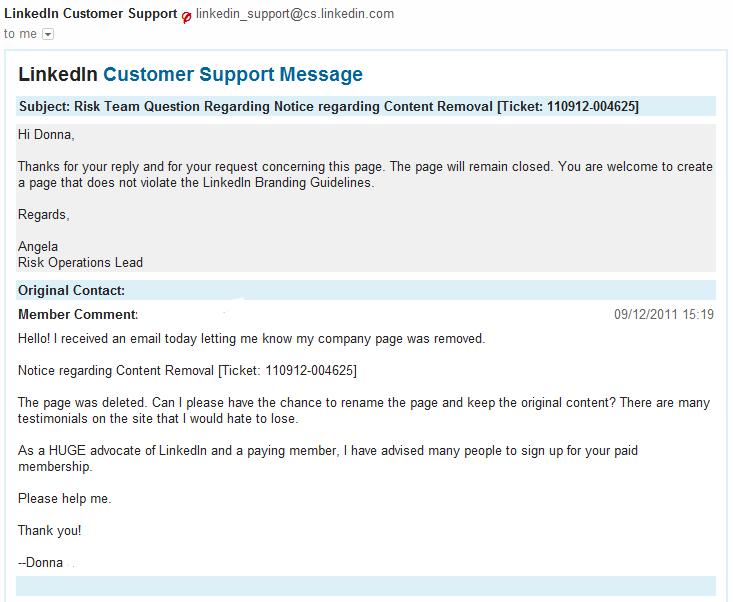
It was a difficult lesson to learn.
Are you thinking, “Gosh, that would never happen to me?” Here are a few ways that you can violate LinkedIn’s User Agreement:
These are just a few violations that I see taking place EVERYDAY!
Realistically, the chances of LinkedIn taking down your account are slight. The greater danger is hackers. Hackers love LinkedIn! How secure is your password? Tennis, anyone? It is entirely possible that your LinkedIn account could be compromised for nefarious purposes and according to some reports, it is quite easy to accomplish.
I am not trying to scare you. I simply want you to protect yourself. If you are using LinkedIn as a business tool, you need to take precautions to protect your data. Unfortunately, there is no tool like SocialSafe for LinkedIn. Not yet at least. Until an online backup is developed, you need to back up your LinkedIn Account manually. Here are the steps to backup your LinkedIn Profile and Contacts…
1. Click Profile on LinkedIn’s main navigation bar
3. Copy the text of your profile. Do it quickly by clicking Ctrl+A & then Ctrl+C.
2. Open up Notepad or your favorite word processor
3. Paste your copied text into the document. You can quickly paste by clicking Ctrl+V
4. Save the file in a location where you can easily find it.
You can get fancy and format the file but it’s not really necessary. The important thing is that you capture your content! You want to make sure you have a copy of your headline, summary, job titles and descriptions, recommendations, groups, etc…
Export your LinkedIn Contacts for backup purposes
1. Click Network > Contacts on LinkedIn’s main navigation bar at the top of your home page.
2. Click the Settings icon at the upper right hand corner of the page.
3. On the right, click Export LinkedIn Connections
3. Leave the Export to field as it appears and enter the security text if prompted.
4. Click Export.
5. Save the file in a location where you can easily find it, like the Desktop.
Note: If you’re using Internet Explorer and see a yellow pop-up blocker across the top of the page, click the yellow bar and then select Download File.
Now that you have your contacts in spreadsheet format, it’s easy to bring them back into LinkedIn under a new account, if necessary.
1. On the upper right hand side of your LinkedIn screen, hover over the Add connections icon (it looks like a silhouette of a person and a plus sign) and click Other.
2. Under More Ways to Connect, choose Upload Contacts file.
3. Click Browse to find the file you exported and saved.
4. Double-click the file name and then click Upload File.
5. Check the boxes in front of contacts you’d like to invite to connect.
It’s not enough to backup your LinkedIn account one time. You need to make sure this becomes a process. Put a tickler in your calendar to backup your LinkedIn Account. I suggest backing up once a month. Backup more often if you are an active user.
Have you had your LinkedIn Account terminated? What happened? How did you deal with the situation? I’d love to hear from you in the comments!
(Directions updated October 2, 2013)
Strategy, templates, videos, downloads, and tools — all designed to help you take confident, intentional steps toward the future you want.
Learn More


Input your search keywords and press Enter.


An inexpensive and more complete way to regularly and automatically backup your entire LinkedIn data is to use our software Socialsafe. This then allows you to search, export to CSV and more your data. We give a full 2 month free trial for you to assess the software and after that it is only $8 per year. Socialsafe also supports Facebook, Facebook pages, Twitter, Google+, Instagram, Viadeo and from 18th Jan RSS Blogs and Pinterest.
Thanks Donna and Julian:
Julian,does your software Socialsafe backup the recommendations on a company products page? Where is the data stored?
Much appreciated,
Vickie
https://www.facebook.com/wellmanworks
I just answered my own question, the data is stored locally!
Vickie
https://www.facebook.com/wellmanworks
Vickie – yes, your data is saved to your local PC/Mac (and soon also your local personal cloud, e.g. Google Drive, Dropbox, etc) – we do this for privacy and also because its the only way to be compliant with all social network terms of service. Your data is 100% private to you and SocialSafe sees nothing.
LinkedIn recommendations are backed up as part of your profile.
Thank you Julian:
I will be recommending your software as soon as I try it out, but from everything I have read and your timely comments it looks like just what I need.
Best of everything to you,
Vickie Christensen
http://www.facebook.com/wellmanworks
Thanks Vickie – if you have any queries you can email me at julian at socialsafe dot net. Cheers, Jules