Design Your Own LinkedIn Profile Photo Frame

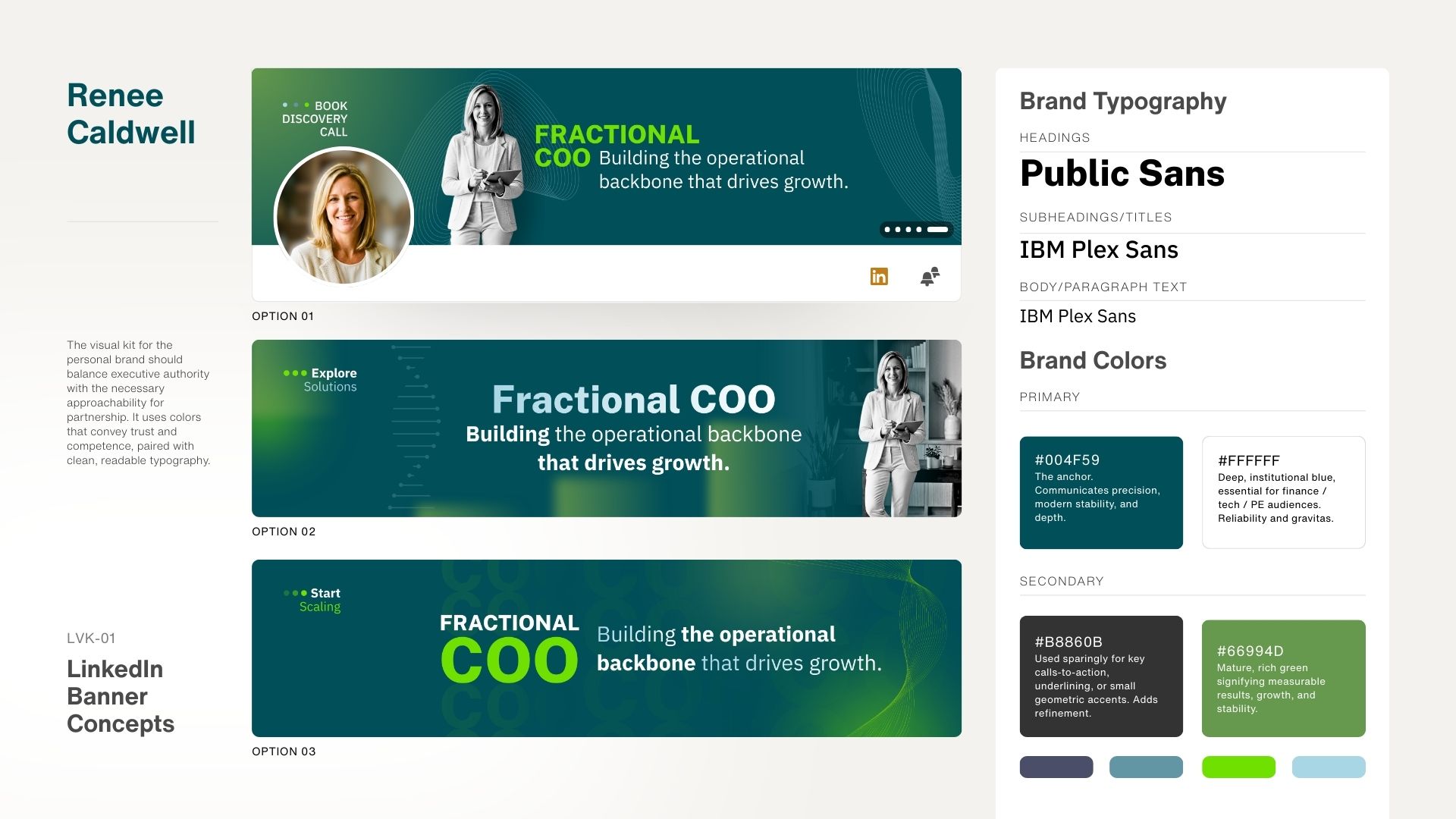
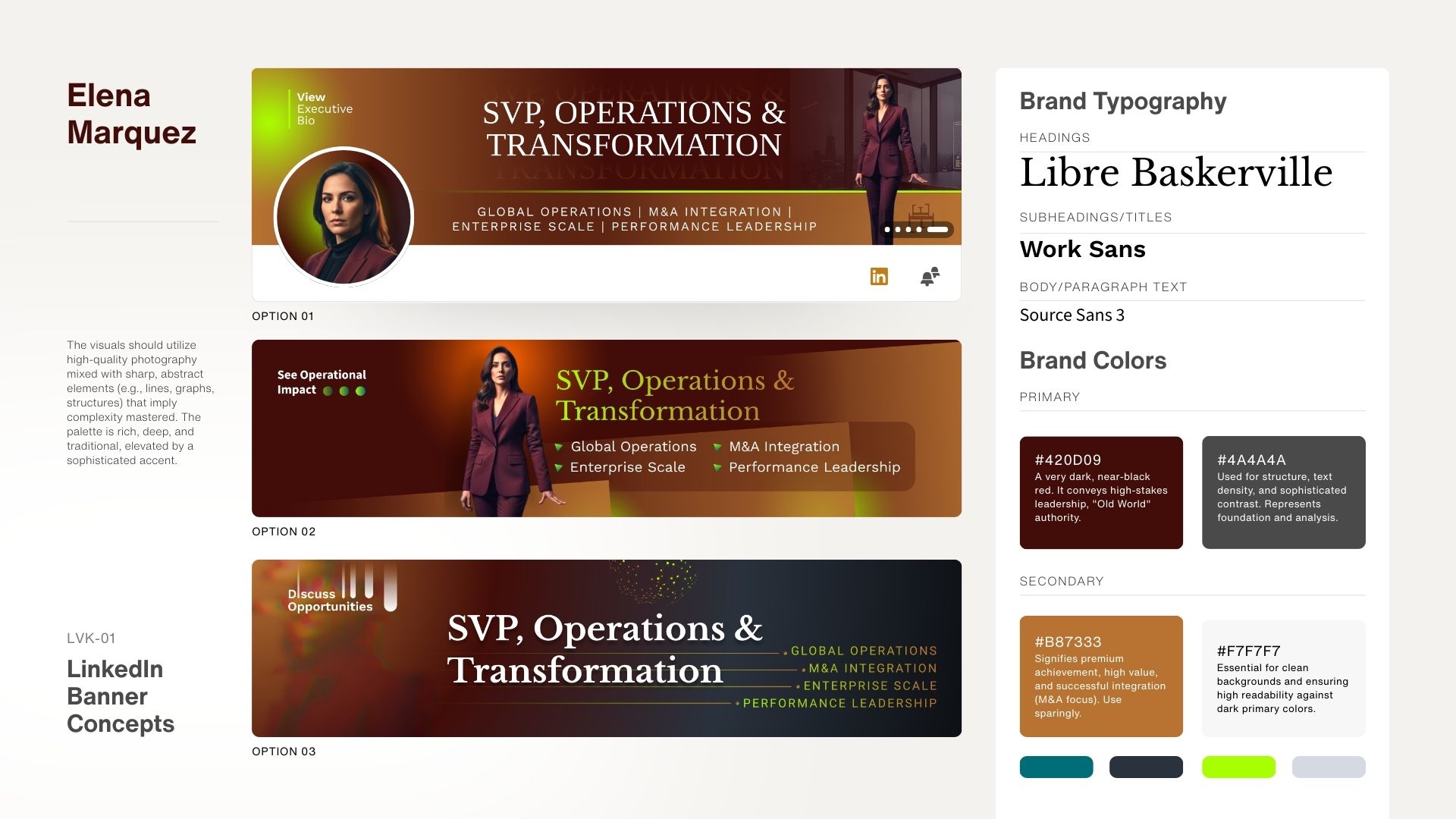
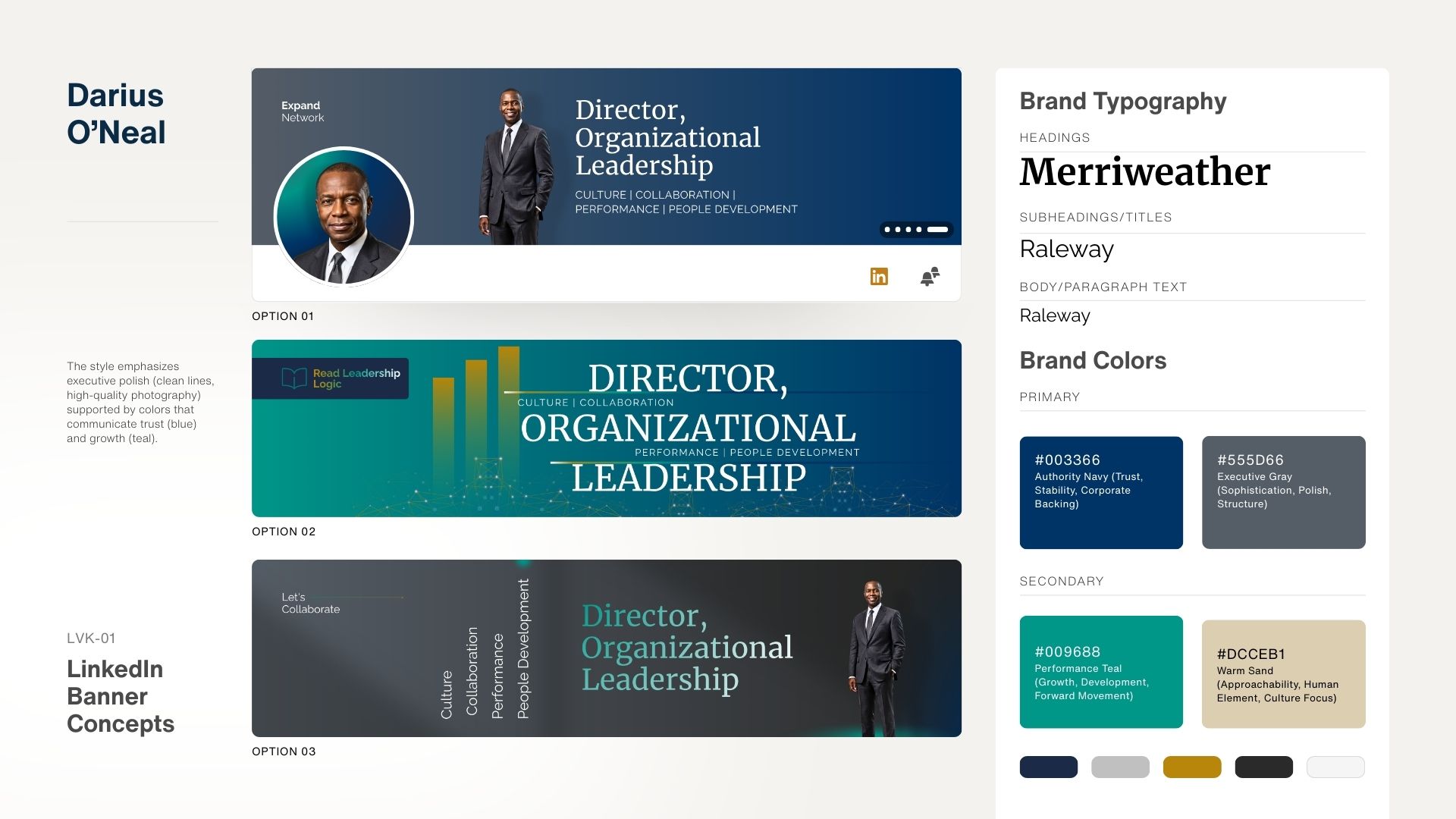
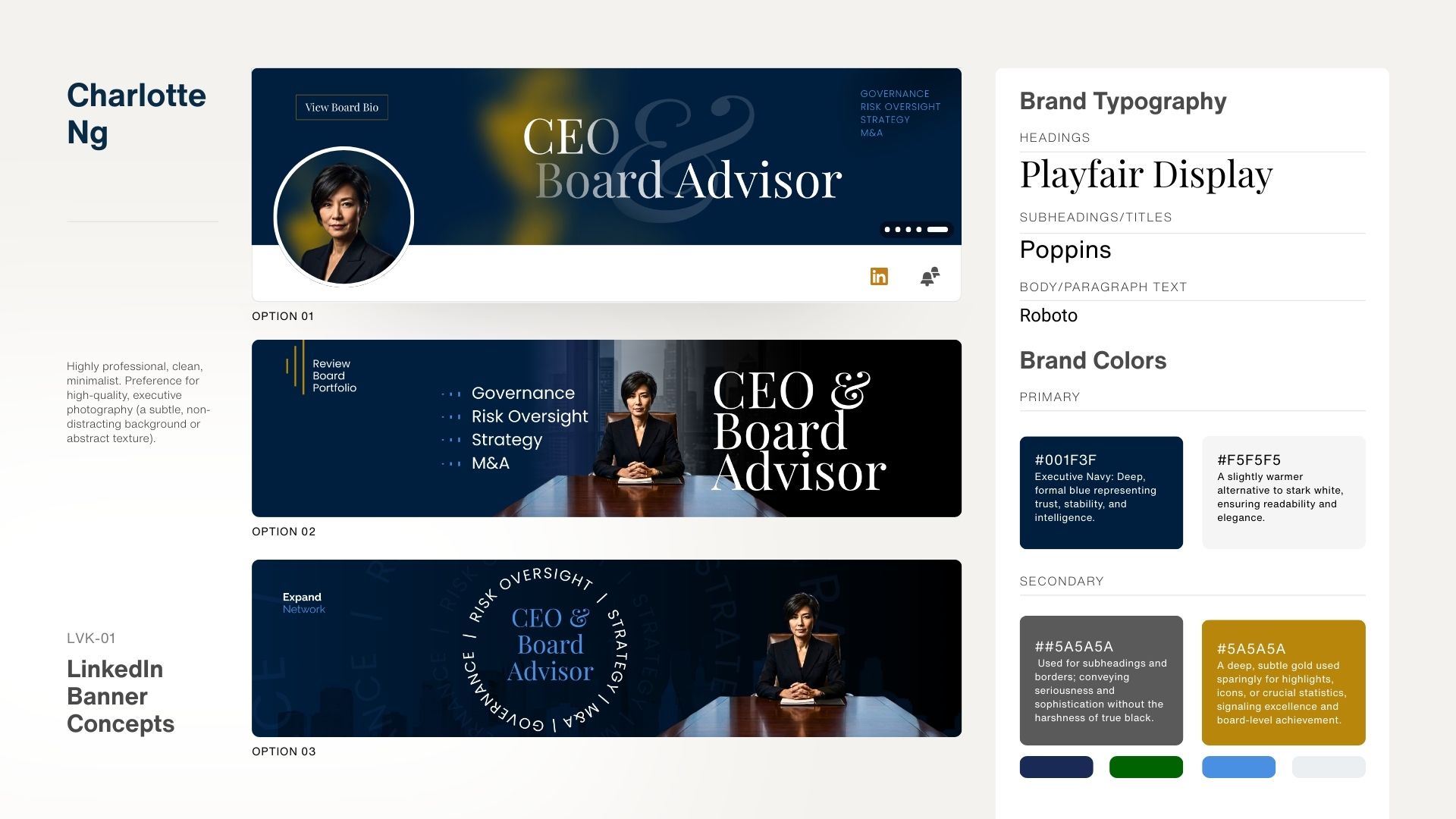
Create a different LinkedIn Profile Banner not Opentowork
Create a different OPENTOWORK Banner

Are you looking to make your LinkedIn profile stand out with a custom photo frame? While LinkedIn provides built-in options like Open to Work and Hiring frames, many professionals want to showcase something more personalized—whether it’s to highlight their brand, services, or a specific message. If you’ve ever wondered how to create a unique photo frame for your LinkedIn profile, you’re in the right place.

LinkedIn’s Photo Frames: #OpentoWork & #Hiring

LinkedIn offers two official photo frames: Open to Work for job seekers and Hiring for recruiters or companies adding to their teams. These frames are popular and effective for their intended purpose, but they can feel restrictive,  especially if you offer services or want to spotlight your brand message. Additionally, sharing that you are #OpenToWork can be difficult for some, and it’s important to understand the pros and cons of turning it on

If you want to express more than just “I’m looking for a job” or “We’re hiring,” creating a custom photo frame is a fantastic way to enhance your professional brand. Whether you want to spotlight your services, showcase your personal brand, or communicate a special message, a custom photo frame can make your LinkedIn profile photo truly unique.

How to Create a Custom LinkedIn Photo Frame

Designing your own LinkedIn photo frame is simpler than you might think. All you need is a graphic design tool, and in this article, I’ll show you how to create a custom photo frame using two different platforms: Canva and PowerPoint. You can add any wording or design elements you want to reflect your brand or message.

Keep reading to learn how to create your very own LinkedIn photo frame!

Create a LinkedIn Profile Photo Frame in Canva

Canva is a graphic design platform that provides a slew of image editing options that make creating images and documents a cinch. Rather than give you step-by-step instructions on how to use Canva, I created pages of templates. All you need to do is drop in your headshot and VOILA a gorgeous photo frame!

Create a LinkedIn Profile Photo Frame in PowerPoint

Most people think of PowerPoint just for presentation slide design but it actually offers image editing and animation tools, too. I know a PowerPoint expert, Michael Rielly, and as a favor to me, he created a bunch of LinkedIn photo frame templates in PowerPoint that you can download and use for yourself.

If you use one of Michael’s templates, consider learning more about and potentially donating to his nonprofit, The James D. Rielly Foundation, Inc. Their mission is to support the children and families of the military and first responders hindered by economic status, physical or mental challenges.

LinkedIn Profile Photo Frame PowerPoint Instructions

In case you want to do it yourself and not rely on a template, below you will find step by step instructions on how to create a photo frame yourself in PowerPoint.

Time needed: 15 minutes.

Create a Photo Frame for your LinkedIn Profile Photo in PowerPoint

  1. Open Powerpoint and create a new blank presentation

    Make sure the slide is blank without any text boxes.

  2. Insert a photo, selecting your headshot/profile photo

    Make sure you use a professional image, well-lit, of you looking directly into the camera, smiling

  3. Insert a shape and choose an oval

    Hold your shift key down to make sure the oval is a perfect circle.

  4. Right mouse on the circle and choose Format Shape. Select No fill for the Fill.

    This will make sure that it’s just an outline of the circle

  5. Within the Format Shape side bar, click Line and increase the width.

    I am using a width of 40 pixels.

  6. Select the color for the circle.

    Think in terms of your brand colors. If you don’t want a full circle skip to the next step.

  7. If you want a partial circle like LinkedIn’s #Opentowork photo frame, select Gradient line

    Delete all but two gradient stops. One should be the color of the circle, the other gradient stop should be 100% transparent. Increase/decrease the angle to get it to the position you want.
    Creating a Photo Frame for your LinkedIn Profile Picture in PowerPoint

  8.  To add curved text, go to Insert > WordArt, and pick the WordArt style you want. 
  9. Replace the WordArt placeholder text with your own text and select it.
  10. Go to Shape Format or Drawing Tools Format, select Text Effects > Transform and pick the look you want.
  11. To save your image, select all (ctrl-a or cmd-a) and right mouse click, choose Save as Picture.
  12. Save the image as either a PNG or JPG.
  13. Go to LinkedIn.com and upload the image as your profile picture.
  14. You may need to zoom and position your photo so it fits right.
    Uploading a profile picture to your LinkedIn profile
  15. Your LinkedIn profile picture now contains a photo frame that brands you!

Congrats! I am sure it looks amazing!

Open to Work Option…

Please note, if you want to use a custom photo and you are marked as “open to work,” you must select “Share with recruiters only” in the Edit job preferences settingsBy sharing your status with all LinkedIn members, the photo frame that you worked so hard to create, will be hidden.

Open to Work Share with recruiters only

If you want to share your open to work status with all LinkedIn members, you are best not using a custom photo frame.

Final Thoughts on Customizing Your LinkedIn Profile Photo Frame

Creating a custom LinkedIn photo frame is a fantastic way to stand out and make your profile photo reflect your unique brand or message. Whether you’re using Canva or PowerPoint, the process is simple and allows for endless creativity. Don’t feel limited by the built-in Open to Work or Hiring frames—take control of your personal brand and create something that truly represents you.

Remember, your LinkedIn profile is often the first impression you make online, so make it count. A customized photo frame can be the perfect finishing touch that sets you apart and draws attention for all the right reasons.

If you’re looking for more ways to optimize your LinkedIn presence, be sure to explore the resources on this site. Need help with your profile? Contact me for expert assistance in taking your LinkedIn profile to the next level!

Frequently Asked Questions (FAQ)

1. Can I still use a custom photo frame if I’m marked as ‘Open to Work’?
Yes, you can use a custom photo frame if you select “Share with recruiters only” in your job preferences settings. If you choose to share your status with all LinkedIn members, the custom frame will be hidden and replaced with LinkedIn’s official Open to Work frame.

2. What if I don’t have access to Canva or PowerPoint?
You can use any graphic design tool you’re comfortable with! Tools like Adobe Photoshop, GIMP (free software) can help you create a custom photo frame.

3. Does LinkedIn allow custom photo frames?
Yes, LinkedIn allows users to upload custom profile photos, which means you can add any design, including a custom photo frame. Just be sure your frame maintains a professional look and aligns with your personal brand.

4. How can a custom photo frame help my personal brand?
A custom photo frame can visually communicate your brand message, making your profile more distinctive and memorable. It’s a subtle yet effective way to signal what you’re about—whether that’s showcasing your services, career status, or unique personality.

5. Will a custom photo frame impact my profile visibility?
While the frame itself doesn’t affect LinkedIn’s algorithm, a professional and polished profile picture can lead to better engagement. A custom frame adds a personal touch that may increase curiosity and encourage profile visits.

FREE Personal Brand Starter Kit

Everything you need to start building a brand that opens doors. Inside, you’ll find the tools to elevate your LinkedIn presence, clarify your value, sharpen your message, and start showing up in a way that gets noticed by the right people.

Strategy, templates, videos, downloads, and tools — all designed to help you take confident, intentional steps toward the future you want.

Learn More
CTA Illustration

8 Comments

Leave a comment

Your email address will not be published. Required fields are marked *

Get your Personal Branding Score… FREE!

Widget BG
Quick Personal Branding Assessment

Instant Access

More than just LinkedIn Makeovers!
Resumes, Executive Branding, Social Media Strategy and more

Our Services

Questions? Contact me!

Donna Serdula 215-839-0008

Location Philadelphia, PA :: EST

Contact Me

Latest Blog Entries

Disclaimer

I LOVE LinkedIn! But I am not endorsed by or affiliated with LinkedIn in any way whatsoever.

There is NO relationship or affiliation with, sponsorship, or endorsement by LinkedIn with this Website.

Absolutely NO content has been authorized by or represents the views or opinions of LinkedIn or LinkedIn personnel.

LinkedIn Makeover is simply a description of a service I provide. My company is called Vision Board Media.

Consent Preferences